
Design Workflow
dsh-annotate
Point at browser elements and send the agent structured facts, not vague descriptions.
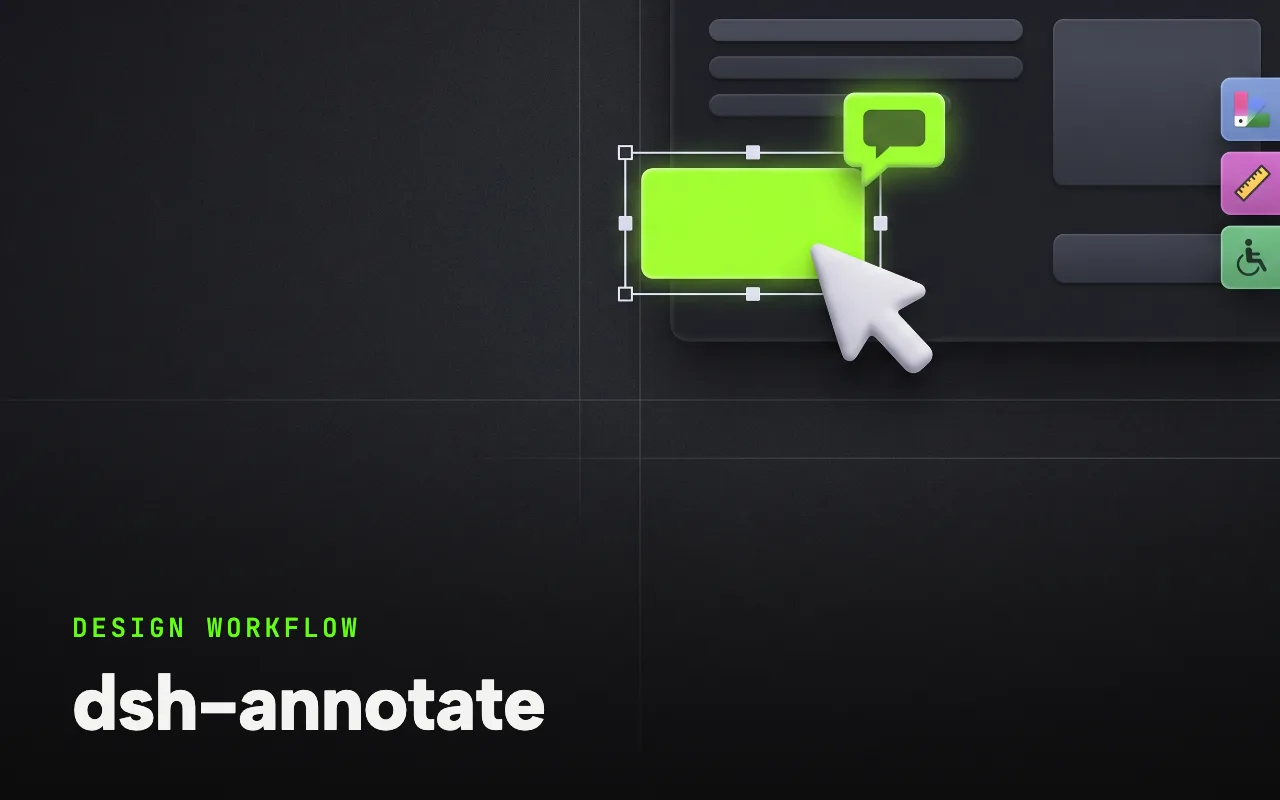
What it is
Visual browser feedback through a companion Chrome extension: /annotate enters selection mode, and each element you click contributes a selector, DOM facts, computed-style highlights, accessibility data, your comment and an optional viewport screenshot to the agent’s next turn.
Visual browser element annotation for DeepSeek Harness, capturing DOM, styles, accessibility data, comments, and viewport screenshots.
Why it matters for design
- Visual feedback stays attached to the page element instead of becoming a vague description or a pasted screenshot.
- Computed styles and accessibility data arrive as structured facts the agent can act on directly.
- A loopback WebSocket bridge restricted by host, origin and extension ID keeps the channel local.
What it covers
- Why this exists
- Features
- Install
- Use
- Configure
- Scope
How to install
dsh-annotate
-
Run this in a terminal.
git clone https://github.com/BrambleXu/dsh-annotate.git && dsh plugin --profile demo add ./dsh-annotate -
Restart dsh web so it picks up the plugin.
-
Then describe the design you want. The harness picks up the plugin’s tools.
How to run it with DeepSeek Harness
-
Clone the repo and add the project to a harness profile, then load its browser-extension folder as an unpacked extension from chrome://extensions.
-
Run /annotate, click elements on the page and attach a comment to each.
-
Submit — the captured facts and viewport screenshot land in the agent’s next turn.
Every plugin here is free to install and links to its real upstream source.
More in the DeepSeek Harness repo ↗More DeepSeek Harness design plugins
 Vision & Input What it does modlens Gives text-only DeepSeek models plug-in vision: paste a screenshot, get structured evidence.
 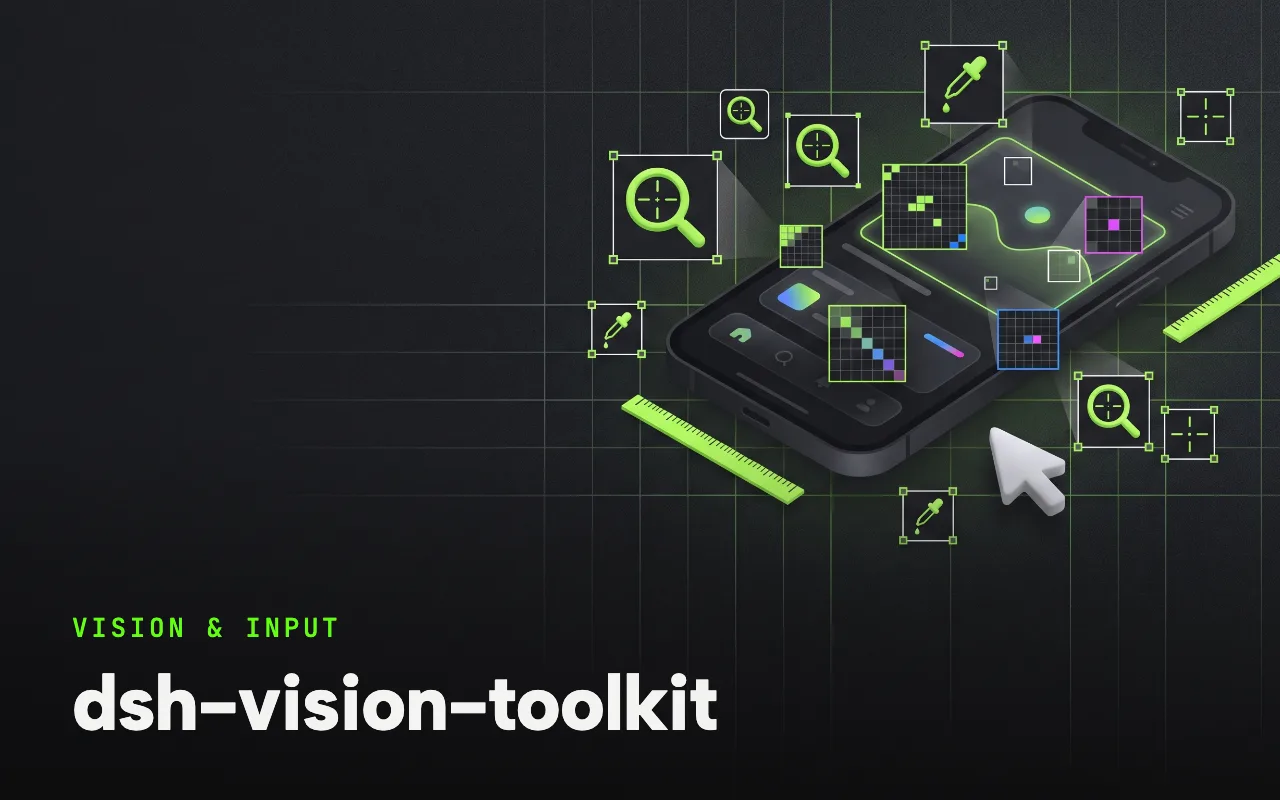 Vision & Input What it does dsh-vision-toolkit Ten vision tools for UI restoration, grounding and pixel-diff verification.
 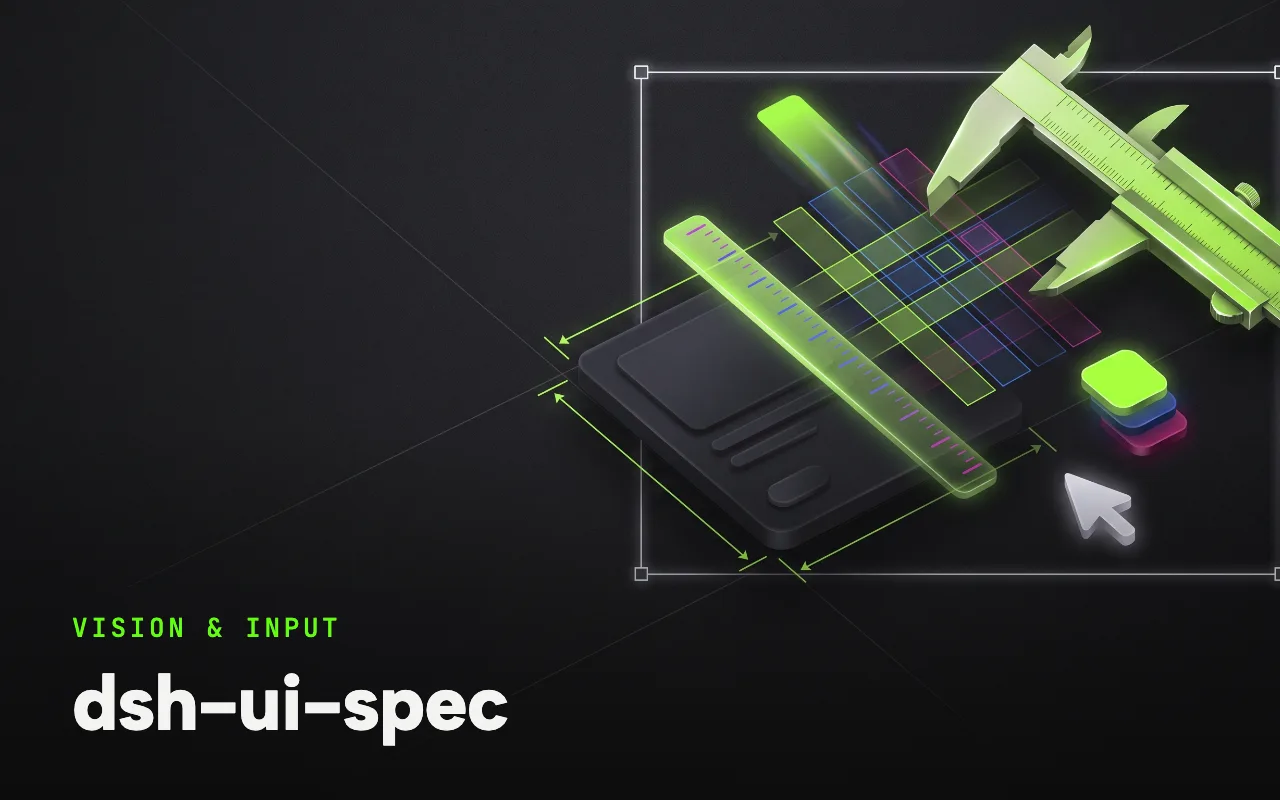 Vision & Input What it does dsh-ui-spec Turns UI screenshots into implementation-grade specs: tokens, spacing scale, layout grid.
  Vision & Input What it does dsh-media-skills Free eyes and a free paintbrush: paste-image reading plus watermark-free image generation.
 Next step
Design with OpenDesign, without the setup
Install this plugin yourself, or run a whole curated design layer around DeepSeek Harness with OpenDesign. Bring your own key, own your output.